VN308

Scrap Dragon Xtreme Scrap Software


Scrap Dragon Xtreme Version 3.0.8 Release Notes December 2016

New in this release of Scrap Dragon Xtreme are the following enhancements. Click here for previous Release Notes

User Approval – Users can now be set up to approve specific customer transactions.

User Approval affects the Buy menu in Scrap Dragon-X.

The new User Approval functionality allows you to assign specific customers to the Approval List. When a Buy ticket is generated for this customer, it must be approved by a specified user before it can be paid.

To see the Approval List for a customer:

  1. From the Start screen, select Back Office.
  2. Select Master Files.
  3. Now, select Customers.
  4. Search for and select the specific customer using the search field.
  5. From the Customer Edit window, select the Buy tab.
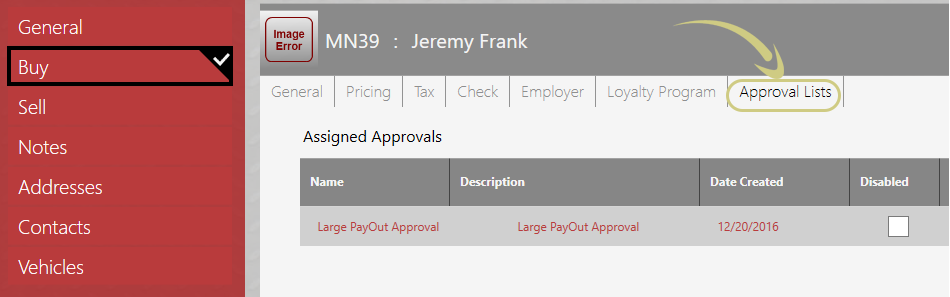
  6. Now select the Approval Lists tab. This is where you will control the Assigned Approval, Approval User, and name of approval.

Scrap Dragon Xtreme Approval Lists


To set up a new approval for a customer:

  1. From the Approval Lists tab, click the button from the action menu.
  2. Now choose a Lookup Approval reason and choose Select.
    • If you need to add a new reason, choose the button.
    • Now, name your approval.
    • Add the Approval User by selecting Lookup Users.
      Note: You can have the Approval User receive an email notification when a customer is set up with a new Buy ticket. If the is selected in the approval Users List, the user will receive an email to let them know that there is an approval waiting for them.

    • Finally, add the Customer by selecting Lookup Customers.

To edit/remove an approval for a customer:
There are two ways to edit/remove an approval:
From the Back Office Menu:

  1. From the Customer Edit screen, select the Buy tab.
  2. Select the Approval Lists tab.
  3. Click on the assigned approval that you would like to remove.
  4. Now select either Remove or Edit Approval.

From the ticket:

  1. From the ticket in the Buy screen, select Ticket Info.
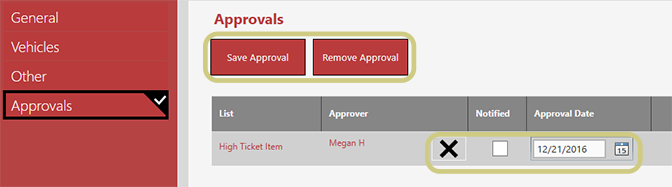
  2. Select Approvals from the menu.
  3. From this screen, you can:
    • Remove an approval from the ticket by selecting X and Save Approval.
    • Remove an approval entirely by selecting it and choosing Remove Approval.
    • Approve the ticket for an approver (with Administrative permissions) by selecting a date and Save Approval.
      Note: You can also select the Notified checkbox to show the approver has been notified.

To handle a ticket for a customer that needs approval:

  1. Create ticket as usual. You will notice that the Pay Ticket button is now replaced with the button for these customers.
  2. Close ticket and wait for approval.
  3. Look up closed ticket and now Pay Ticket as usual.

To Approve a Buy Ticket for a customer as an Approval User:
The user that is set up as the Approval User can now log in and approve the ticket.

There are two ways to approve a ticket:
>Close Ticket

  1. Log in as the Approval User.
  2. Select the Buy button.
  3. Select View Closed.
  4. Filter by ticket number or choose ticket from the available list.
  5. Click Close Ticket.

>User Menu

  1. Log in as the Approval User.
  2. Select User Menu.
  3. Select Approve Tickets.
  4. Select the ticket that is awaiting approval.

  5. Now, click from the Action Menu.

Release Notes for Version 3.0.8

Version 3.0.8 Release NotesPDF

© 2025 Transact Payment Systems. Proudly powered by Sydney